

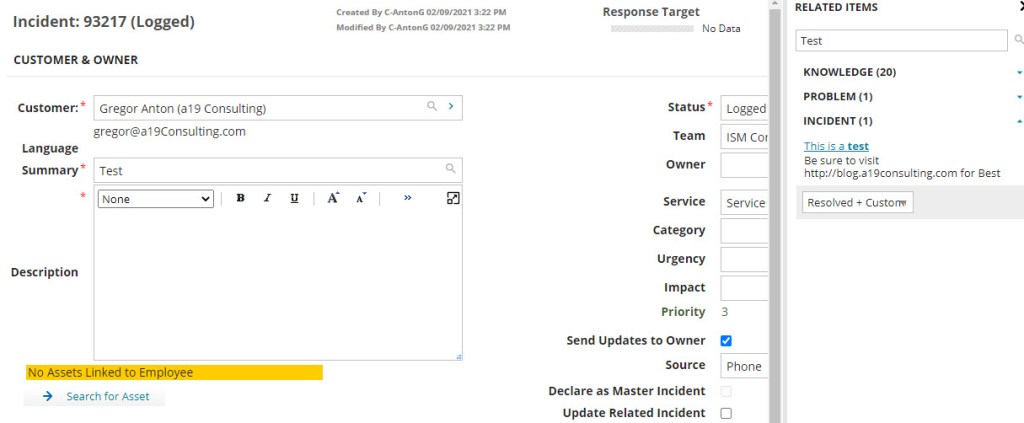
One of the HEAT Classic Features that is frequently requested is to bring back the customer history. There are several implementations for this, today we will cover how to implement Incident Customer History for Related Items, aka Object Matching.
- Open the Incident Layout you wish to implement this for
- Open the Form View
- Click “Edit Matching Settings“
- Edit the Existing Incident Object
- Click Edit Filter
- Edit the “Resolved Filter” and change it to “Resolved + Customer History“
Note that you could add a new filter but then the user has to select that filter manually or disable - set Condition to $([MatchedObject]Status == “Resolved” OR [MatchedObject]ProfileLink_RecID==ProfileLink_RecID)
- Save all your changes
- Refresh your Browser
- Test your Changes
- Like my Blog and tell all your friends!
Tips & Best Practices:
You can add additional filters or edit existing filters to show:
- Master Incidents
- Incidents from Employees with the same Org Unit, Department, Location
- Incidents that are Logged or Not Closed (where you want to see what similar Incidents are out there that haven’t been Resolved/Closed


 ITSM/ITAM/ESM Blog
You must be logged in to post a comment.